
Many Trading Indicator (MTI)
Learn to use every function of the Many Trading Indicator (MTI) — from the Buy-Sell Signal, TP/SL, and Trend MA to SMC tools such as Market Structure, Order Block, FVG, and Divergence. Read it on the web, and download the full PDF.
Choose a topic of interest — click to jump straight to that section.
The Many Trading Indicator (MTI) is an indicator for chart analysis and trade decisions on TradingView, developed to help you see market direction more clearly and to focus on trading in line with the price trend (Trend Following).
MTI's core idea is to help users avoid trying to guess the market or forcing counter-trend entries, and instead focus on finding opportunities when the market has a clear trend, entering with the market's momentum systematically.
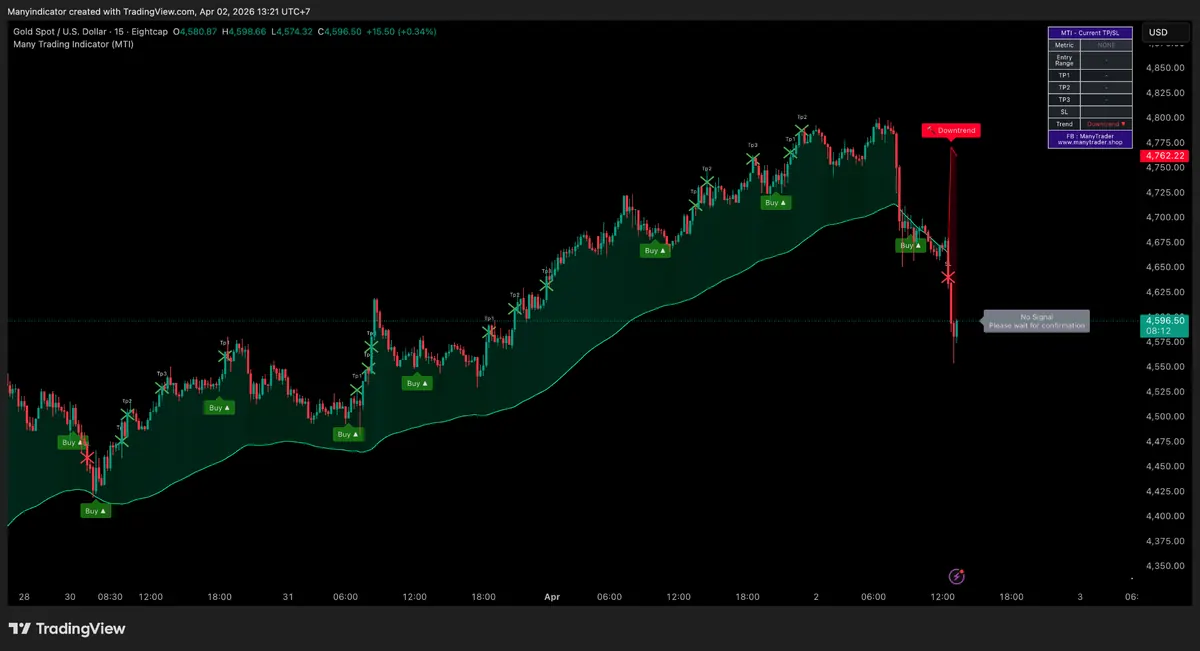
MTI is designed to suit users at many levels, from beginners to the experienced — start with the main signals, then gradually layer in the extra functions as you grow familiar.
Start with the Buy-Sell Signal together with the TP/SL levels first; you don't need every function at once — focus on learning to enter in line with the market direction.
Use the main signals together with extra functions such as the Trend Moving Average and Market Structure to filter entries that align with the overall market.
Combine SMC tools such as Order Block, Demand/Supply, FVG, and Divergence with your own analysis approach flexibly.
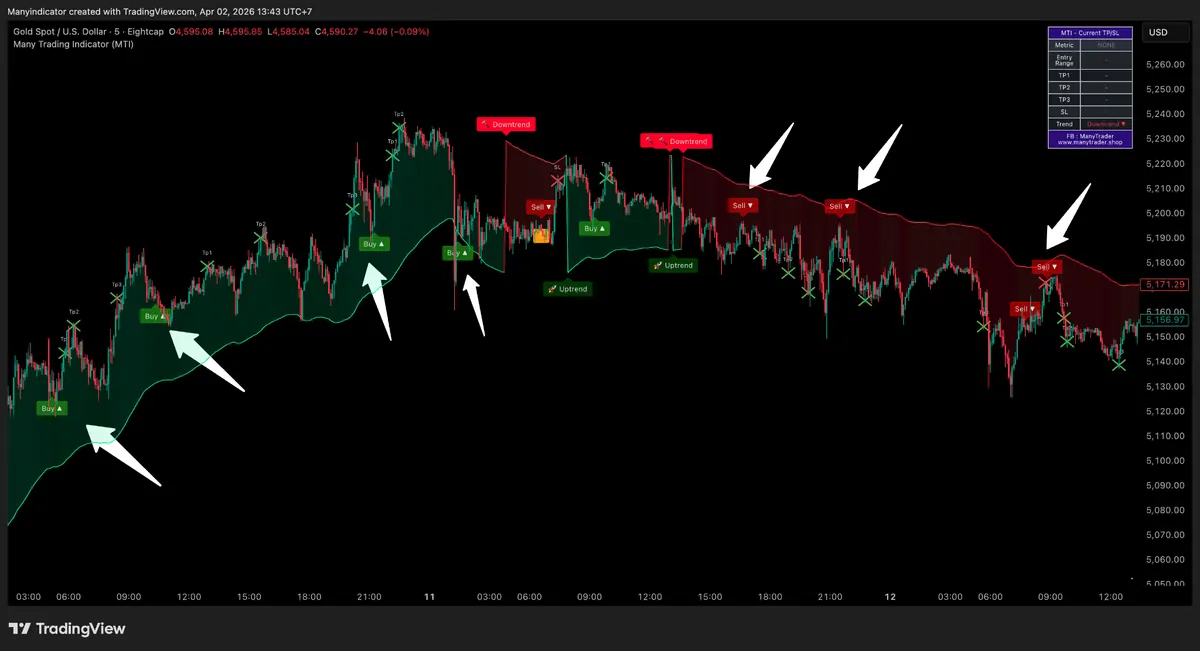
The Buy-Sell signal is a core function of the MTI system, used to filter suitable entry points for trading with the trend only — it creates no counter-trend signals
Processed from Strength Oscillator, Candle Pattern and price behaviour in the form of reversals and rejections, to filter moments that align with the main trend
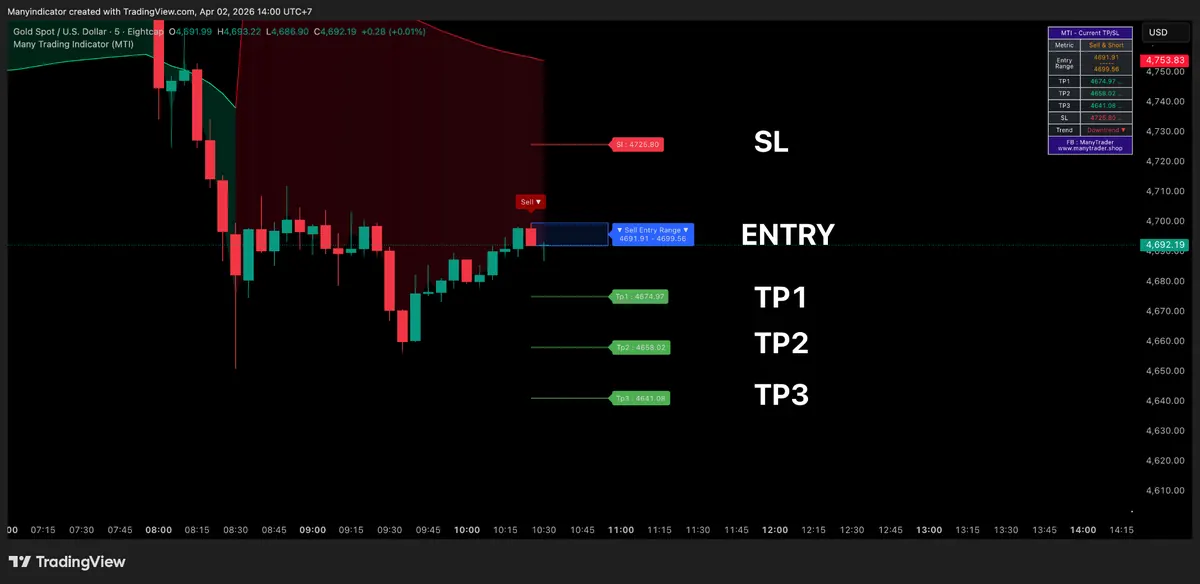
The system shows the key levels Entry, Entry Range, TP1/TP2/TP3, and SL of each signal, so you see the trade-plan framework before entering an order
If you miss the first entry but price is still within the Entry Range and has not hit TP/SL, you can still consider entering — as long as the signal has not broken its structure
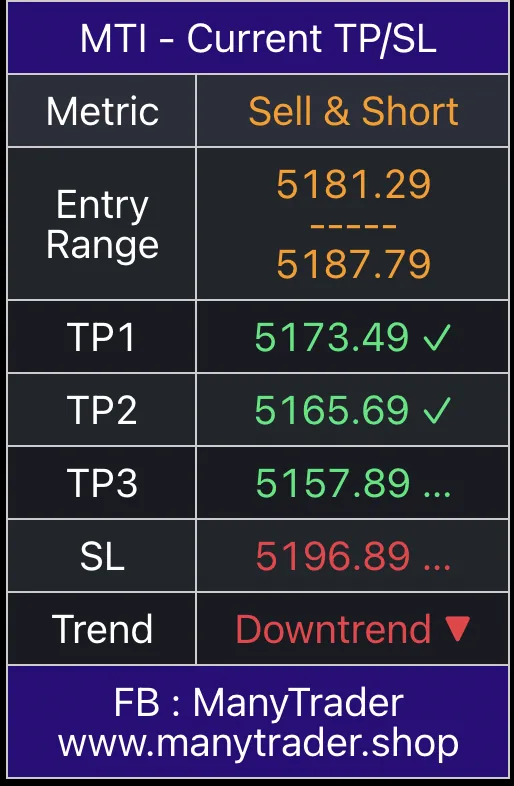
A table summarising the latest signal's key data in an easy-to-read, quick-to-understand format — to support your decisions.
A specially built custom Moving Average — used to calculate and display the market's main trend, to filter the direction of Buy-Sell signals so they align with the trend
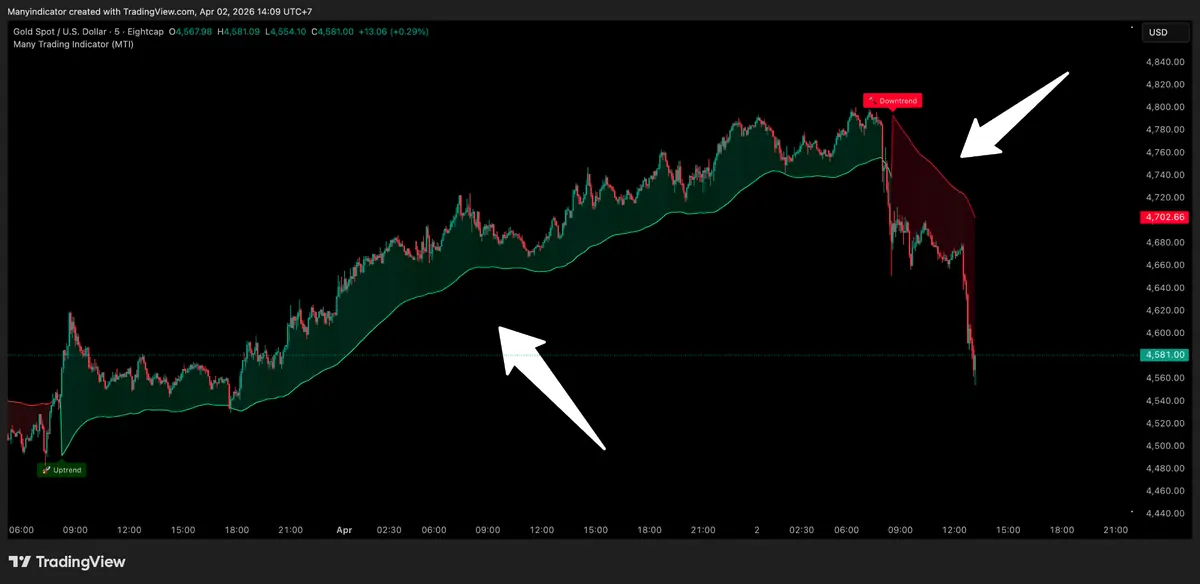
Supplementary functions that help users track the status of signals and the trade plan clearly
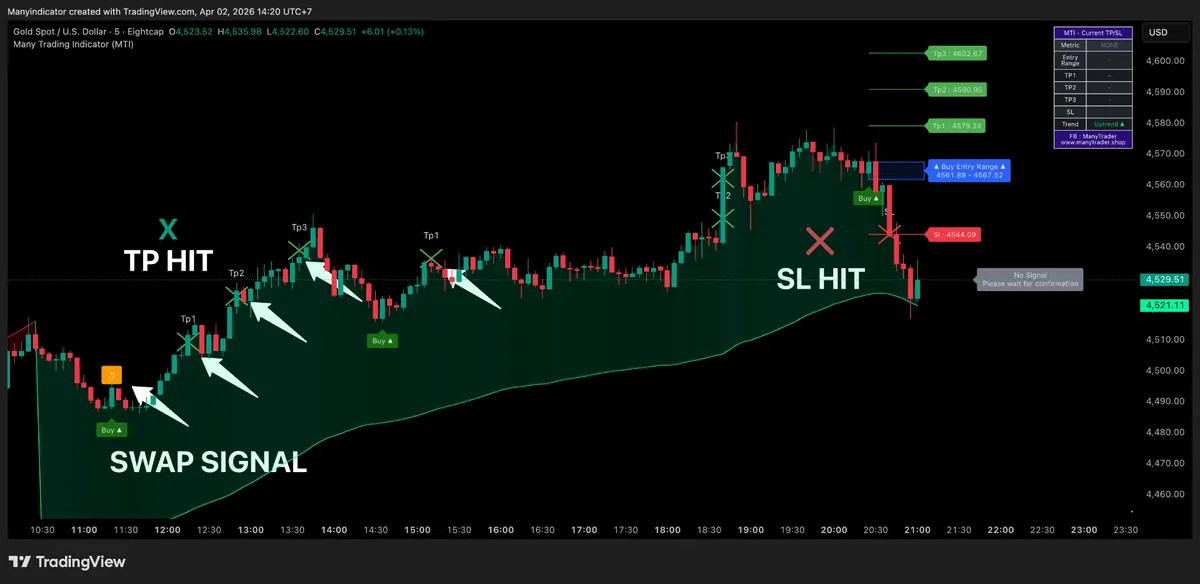
Start using the system with simple steps — focused on entering trades by signal and with the trend
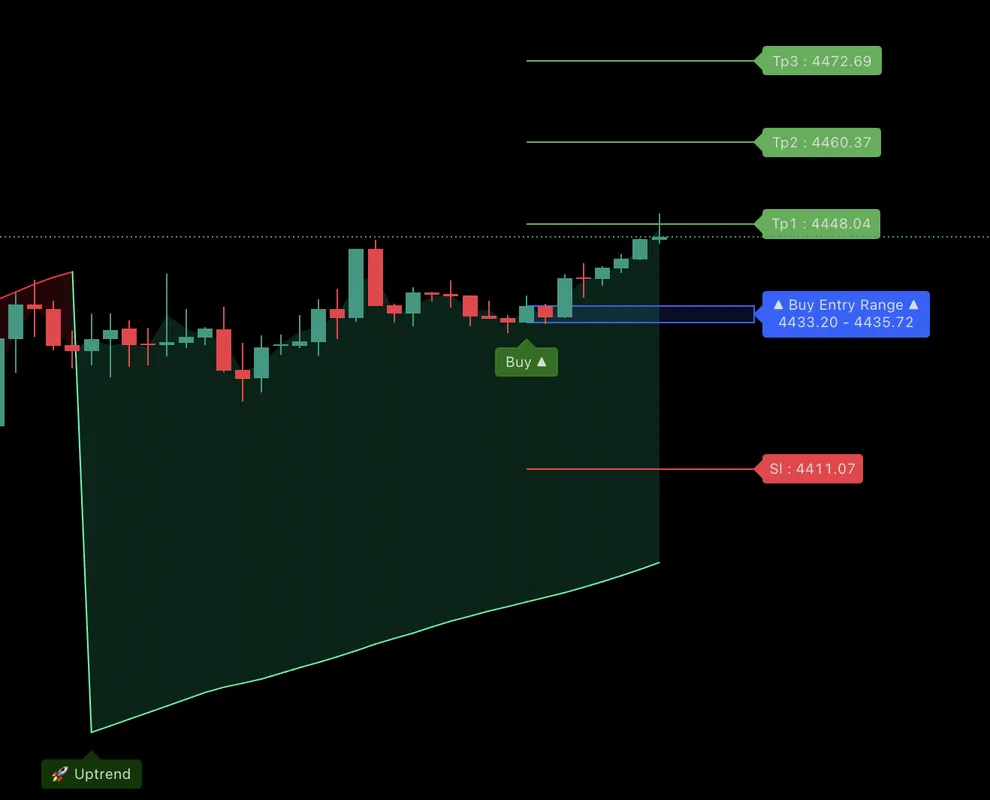
MTI works with any asset and any timeframe, but the system has a recommended timeframe for each market for the best signal quality.
⭐ The 15-min TF is the timeframe that suits MTI best overall — balancing signal quality, market stability, and convenience in following the chart
To start, we recommend using the default values the system sets first — they have been tested and used in real conditions
The system uses ATR (Average True Range) to calculate the TP/SL distance — the distance adjusts to the chart's actual volatility at the time, keeping it consistent with market conditions
responds to price changes faster, but signals may also change more quickly
a good balance between signal sensitivity and system stability, suitable for most users
suits those who want less sensitivity and a clearer trend before signals are displayed
Extra tools for analysing price structure in depth — suited to those who want to judge entry timing on their own
A key foundation of Price Action / Smart Money Concept (SMC)
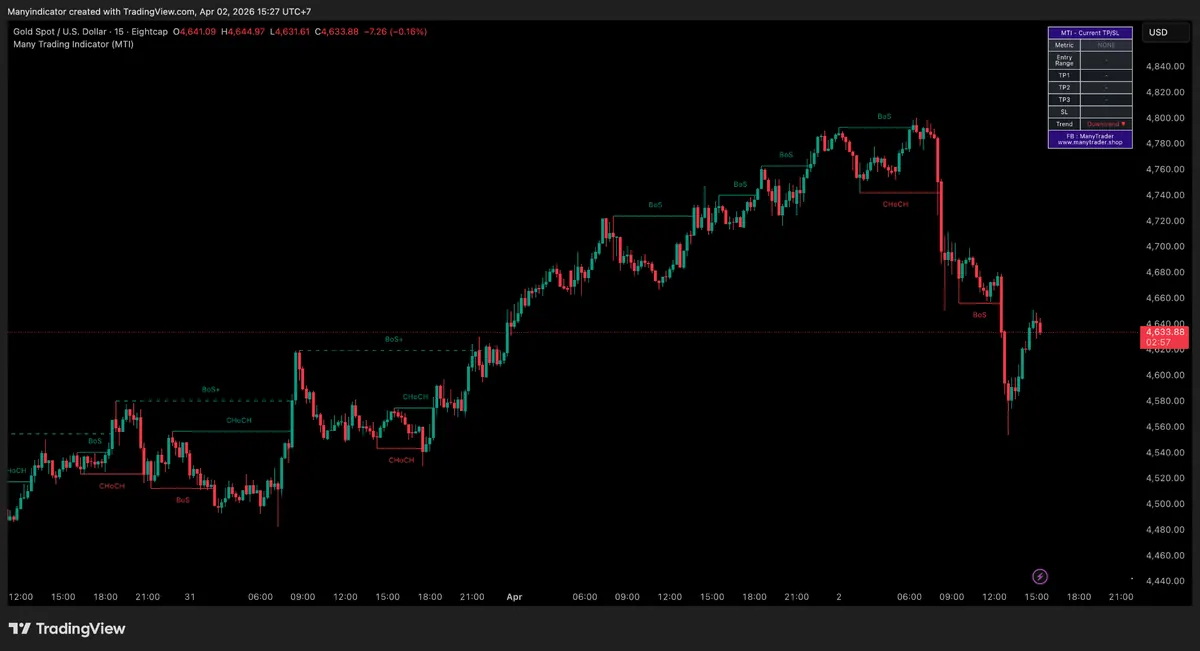
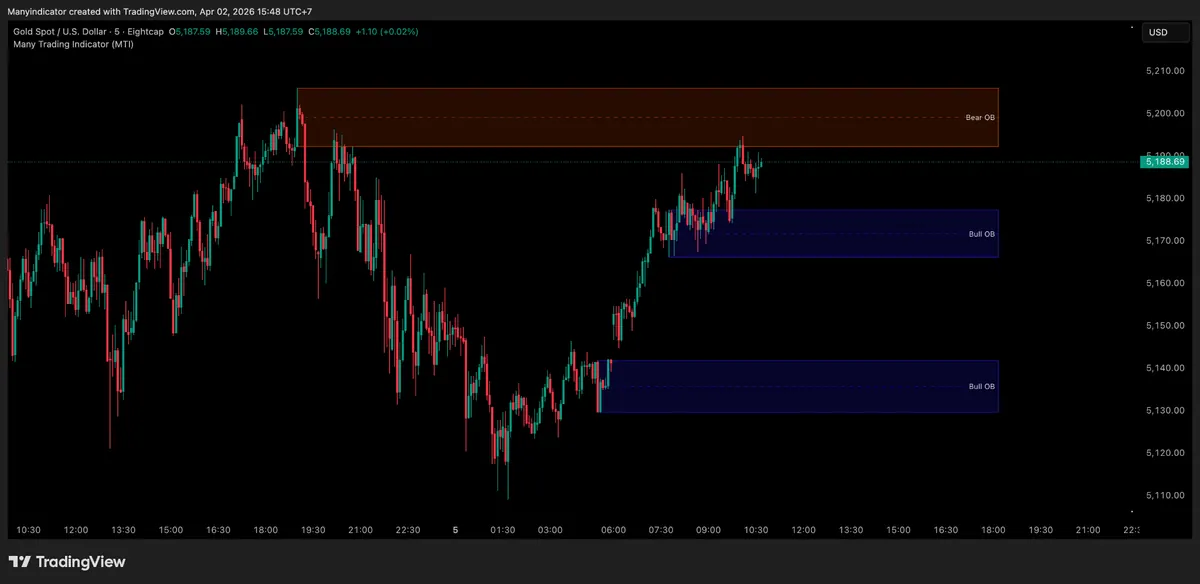
Key price zones where there was prominent past buying or selling — used to watch how price reacts when it returns nearby
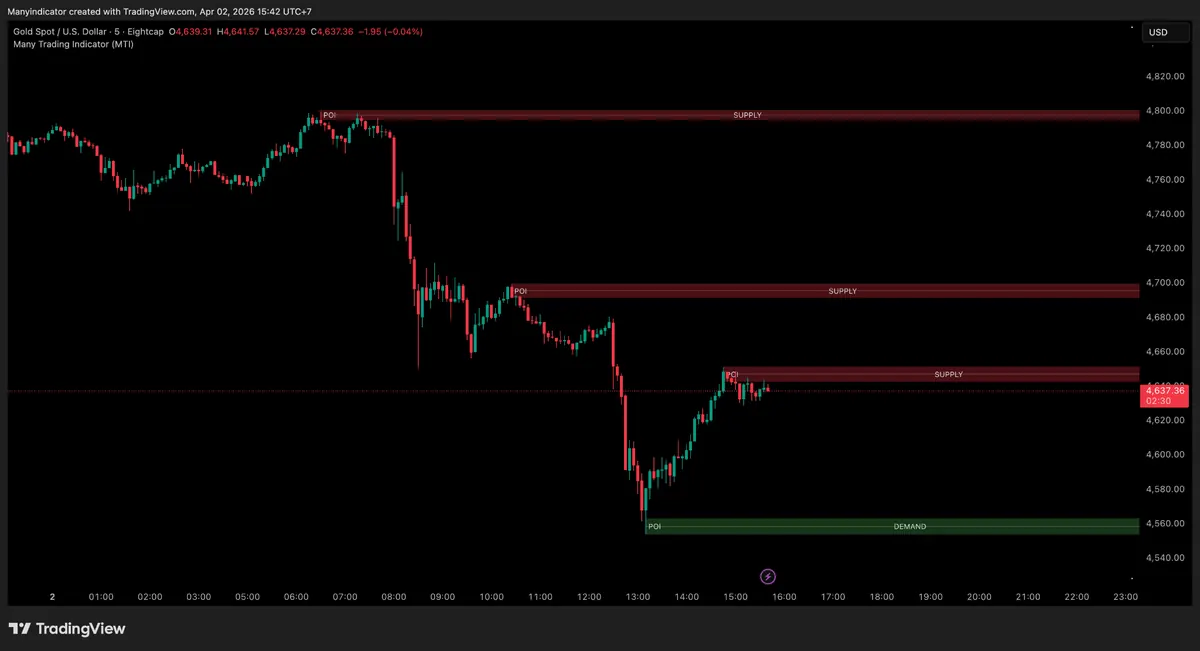
Key zones that may affect the market's later reaction — shown on 2 main sides
Price gaps, or areas where price movedunusually fast, creating a period where price has not been filled in a balanced way in the short term
The FVG concept: in some periods the market has rapid buying or selling, moving price so strongly that a "gap" appears — many people watch this area to see how price reacts if it later returns to touch it.
Analyses the relationship between price direction and the indicator's momentum — if they begin to diverge, that point is a Divergence
MTI uses the RSI Divergence concept, detecting and displaying it automatically, with 5-candle confirmation before display, so signals are clearer and more reliable
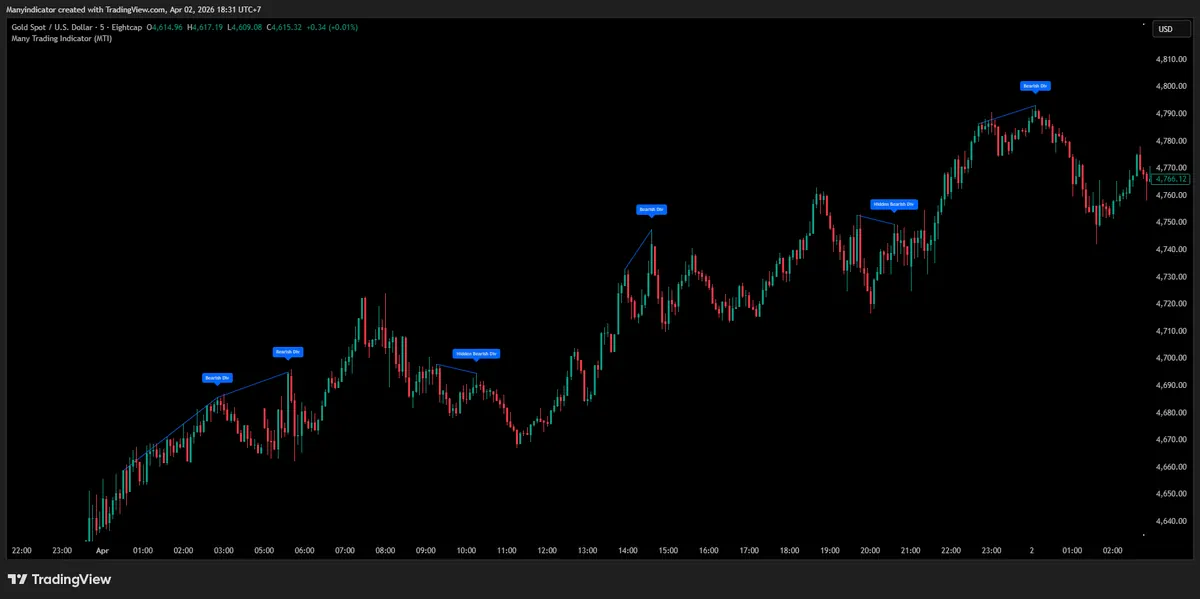
Price makes a lower Low but the indicator makes a higher Low → downward momentum weakening, the market may recover
Price makes a higher High but the indicator makes a lower High → upward momentum weakening, the market may pull back or reverse down
Price makes a Higher Low but the indicator makes a lower Low → buyers still in control; the pullback may be a pause before continuing up
Price makes a Lower High but the indicator makes a higher High → sellers still in control; the rebound may be a pause before continuing down
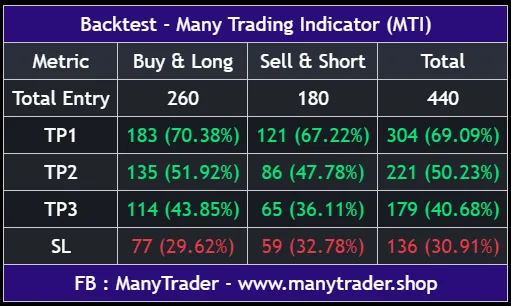
The system summarises historical results in an easy-to-read format — to give an overview of the performance of MTI's signals
MTI has a complete alert system, so you don't need to watch the screen all the time — set it to alert you immediately when a signal occurs, supporting mobile, Email, and Desktop
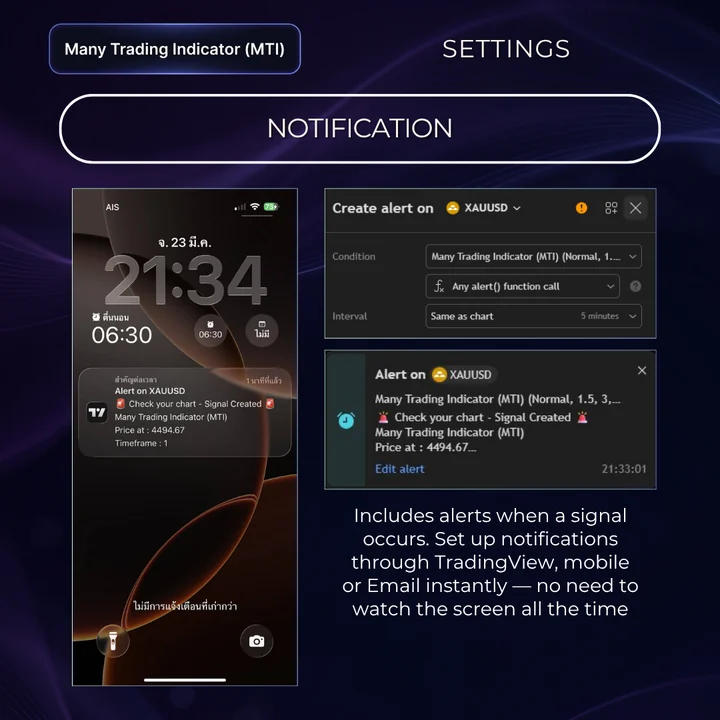
Takes just 1 minute, on both the Web and Desktop App of TradingView
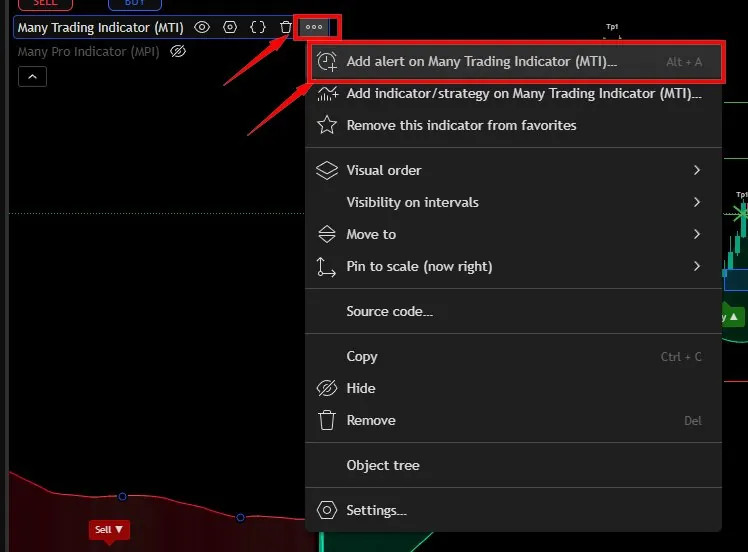
Many Trading Indicator (MTI) on the chart, click the ••• then choose "Add alert on Many Trading Indicator (MTI)..." or use the shortcut Alt + A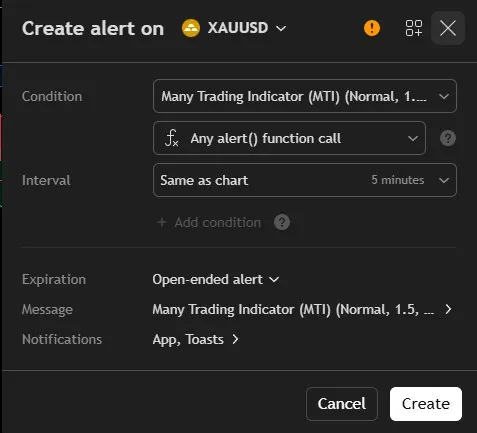
Condition choose Any alert() function call and set Expiration to Open-ended alert so the alert runs continuously with no expiry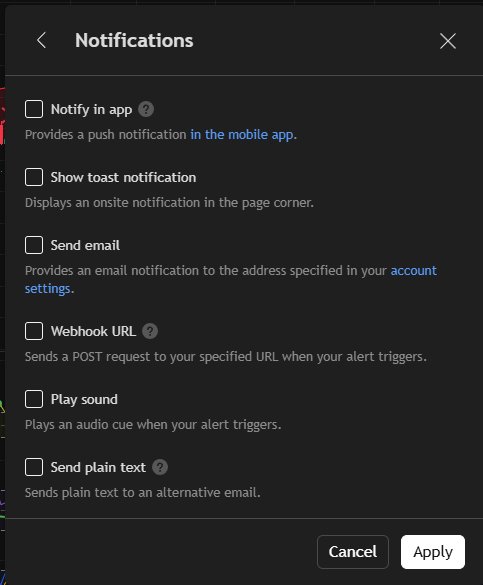
Notifications you can choose App, Email, Toasts then click Create — and start receiving Buy/Sell alerts right awayMTI is an Invite-only indicator on TradingView. At checkout you enter your TradingView Username, and once your payment comes in our team installs it on your account for you. You'll then get a confirmation email — with the activation steps and this manual — at the address you entered, and you simply enable it from the Invite-only menu on your chart. Follow the three steps below.
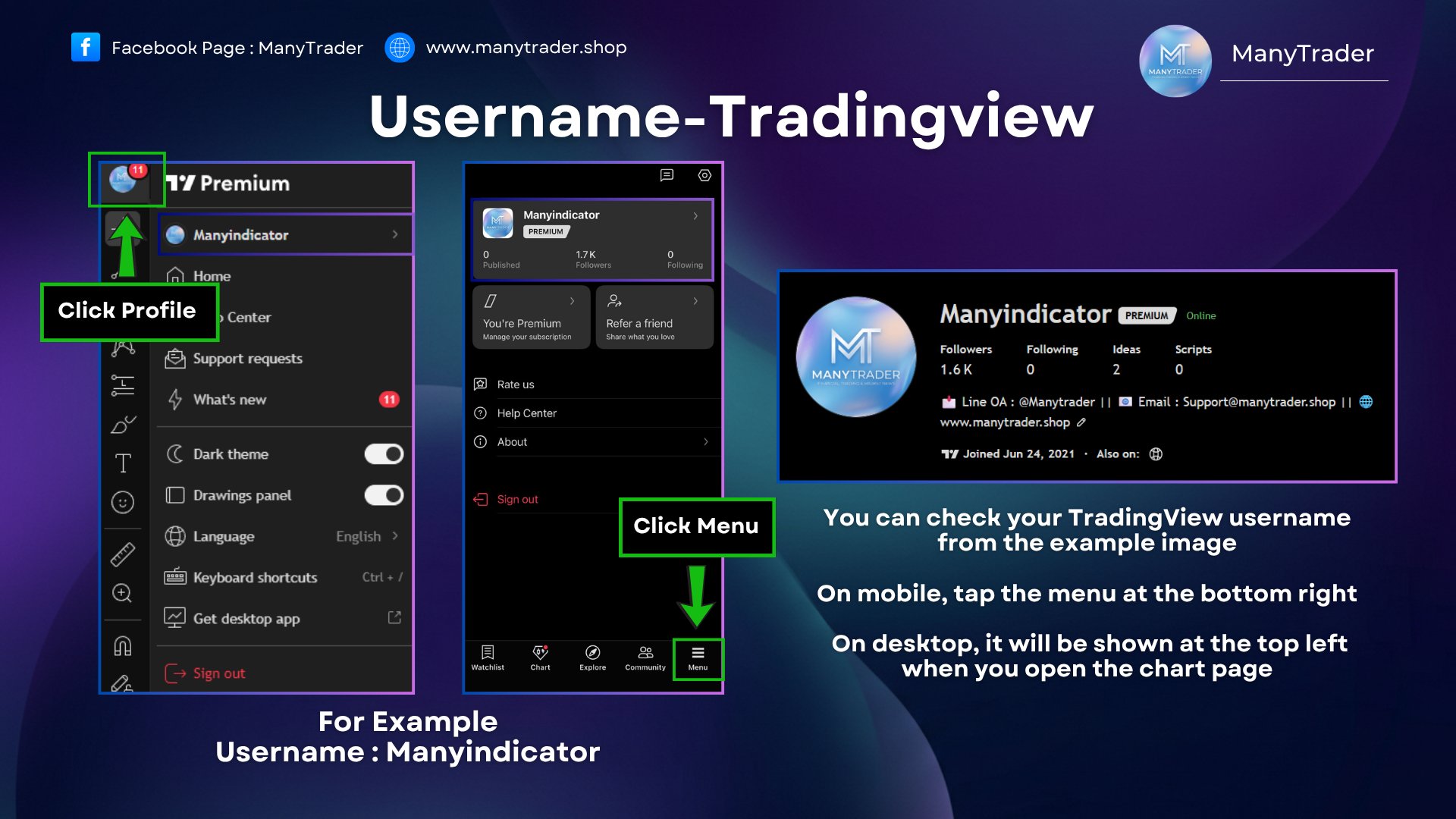
During checkout (Stripe payment) there's a field for your TradingView Username — just fill it in. Once your payment comes in, our team installs the indicator on your account and sends a confirmation email — including the activation steps and this user manual — to the email address you entered. The image below shows how to find your own Username — on desktop it appears at the top-left when you open the chart page, and on mobile via the menu at the bottom-right.
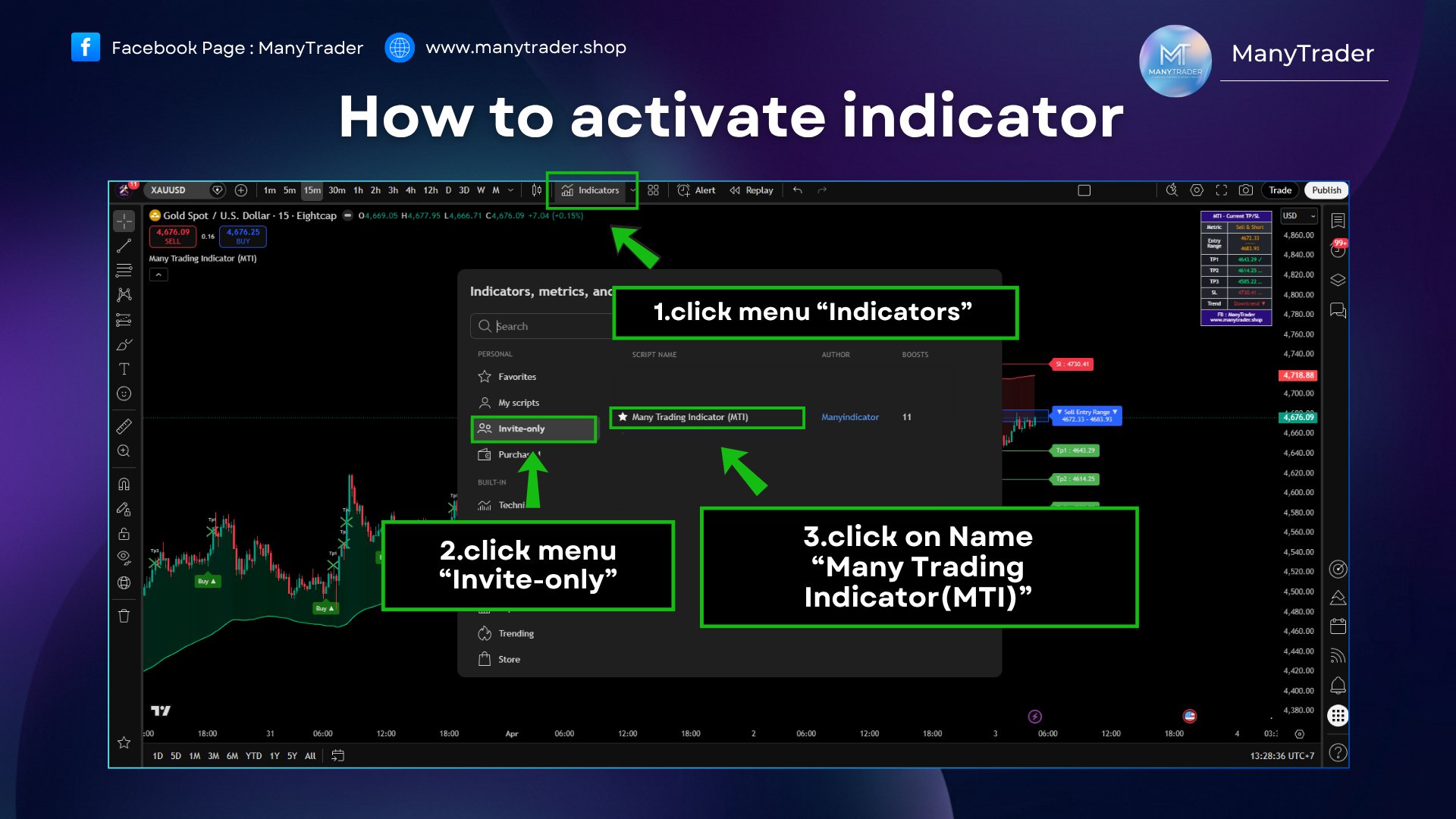
Open TradingView on desktop, click the Indicators menu, choose Invite-only, then click Many Trading Indicator (MTI) to add it to your chart.
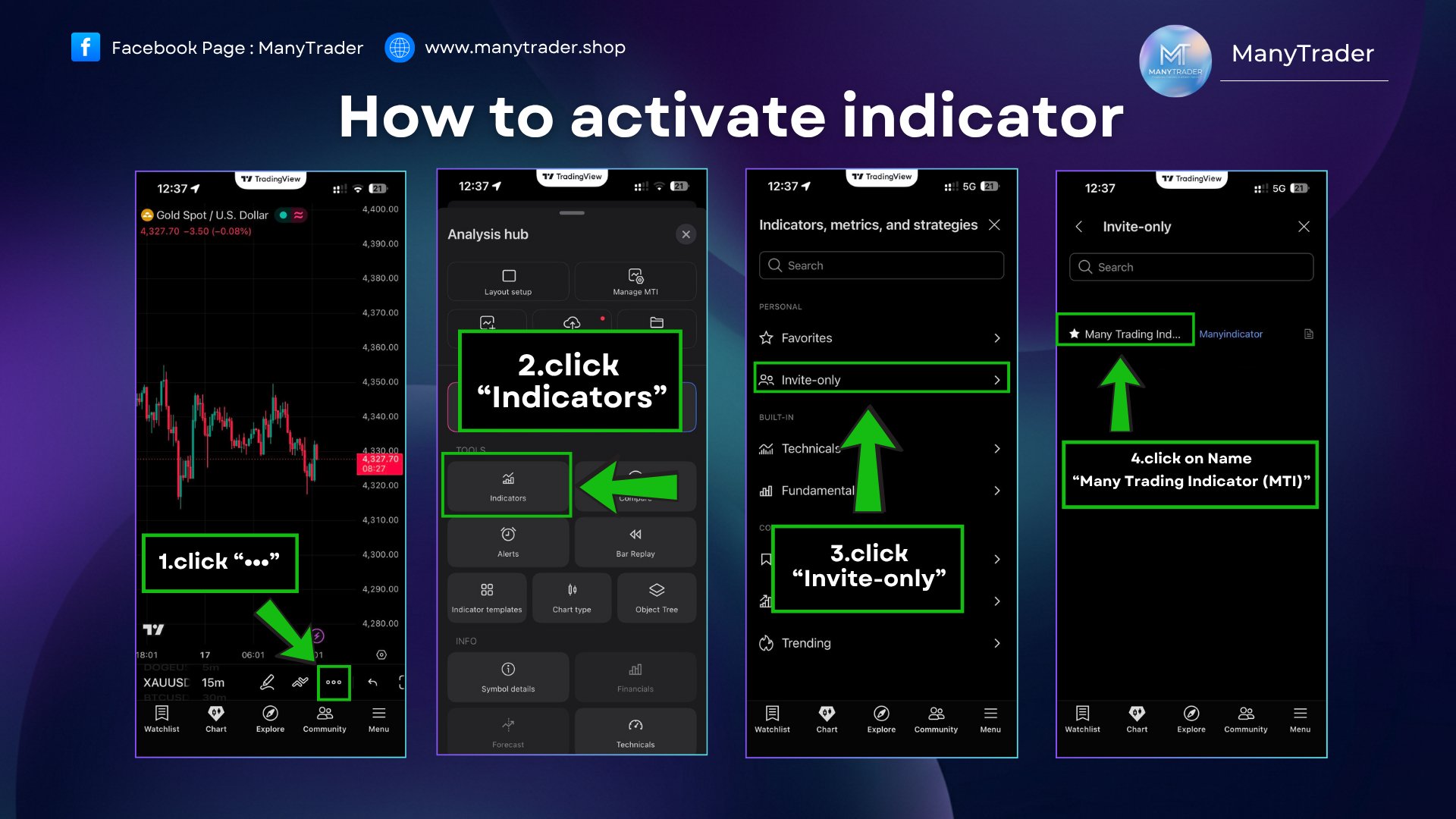
In the TradingView mobile app, tap the ••• menu, choose Indicators, choose Invite-only, then tap Many Trading Indicator (MTI) to enable it.
Once you've worked through the manual, start using the MTI indicator on your TradingView — it works with every asset: Forex, Crypto, Gold, and stocks.